(A tutorial for Corel Photo Paint)
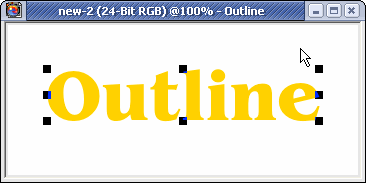
First start off with the object that you want to add the outline too make sure its on its own layer.
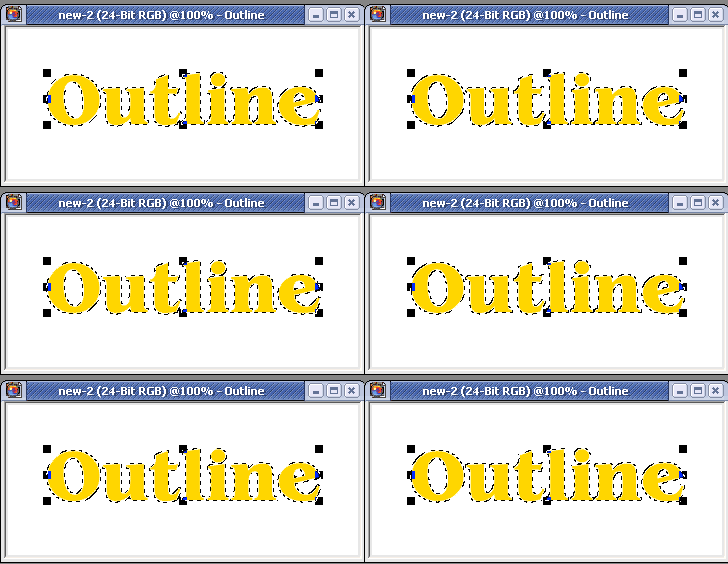
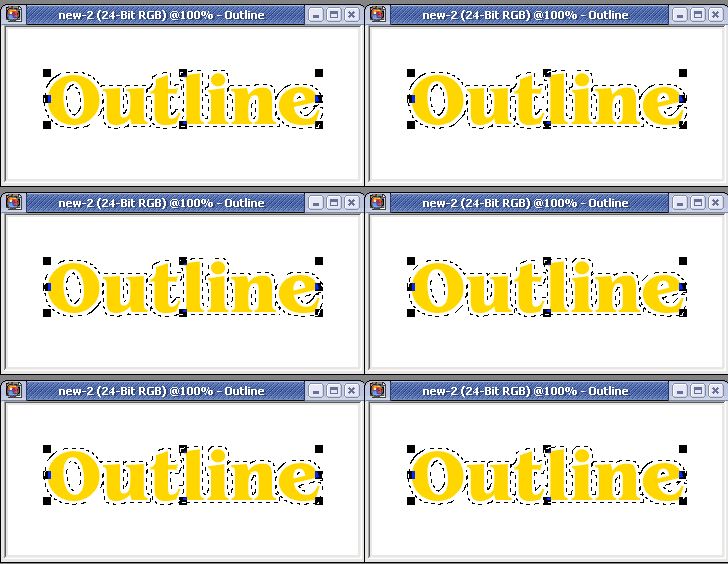
Now click Masks � Create mask from objects You should now have a mask arround your object
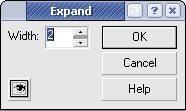
Now click Mask � Shape � Expand the dialoge box will pop up and enter the a # of how thick you want the outline to be. Here are the setting that I used.
Now you chould have a mask that is slightly larger then you object.
Now go to Object � Create � New Object this will create you a blank new object/layer On you object docker drag the blank object behind you other object.
Also make sure that your mask is still there.
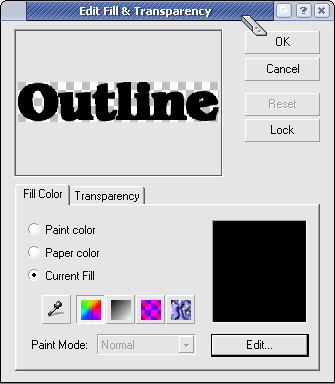
After that is done slect your blank object and click Edit � Fill This is where you add the outline You can choose the color on the dialog that pops up Here is what my setting looked like.
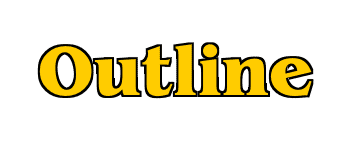
Once you are finished there hit the ok button and you should have you outline, but you arnt finished yet you still need to remove that mask and combine the Outline layer and your object. To remove the mask hit CTRL + SHIFT + R. Now select both you outline and object on the object docker and then hit CTRL + ALT + ? (Down arrow) Now you are finished, here is what my final result looked like: