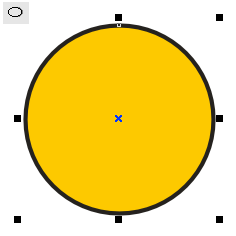
First start out by createing a new document in corel draw. Next get out the Ellipse Tool hold down CTRL and draw a circle (by holding down CTRL it makes the ellipse perfictly round). Now give it a black 8pt outline and fill it with what ever color you want. I used a gold color for this tutorial. You should get some thing that looks like this.
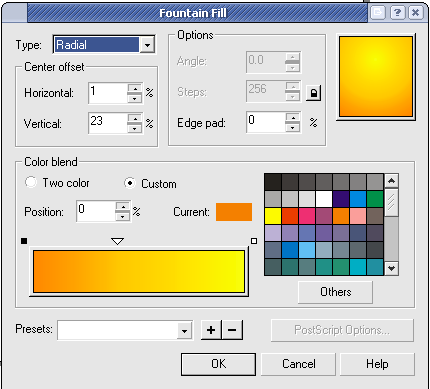
Next comes the hard part. Hit F11 to open up the fountian fill dialog. You can eather copy my settings or try useing you own color. But basicly what you want to have is a darker color down at the bottom and a highlight that is just above the middle.
Your once you have it how you like it hit "OK" Your results should look a lot like this. If they look dramatically diffrent then go back and try agian because getting this step right is key.
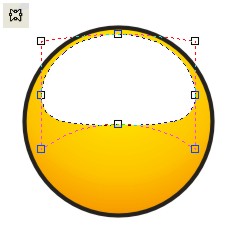
Now its time to add the highlight. Pull out the Ellipse Tool agian and create an oval fill it with white and remove the outline. Now pull out the Envlope Tool and try to match what is shown here.
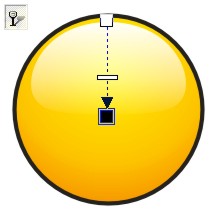
Now we need to add the transparency to the highlight. Pull out the Interactive Transparency Tool and at the tool settings bar at the top pull down the drop down menu and select Linear. Now arrange the black and white boxes so they look the ones below.
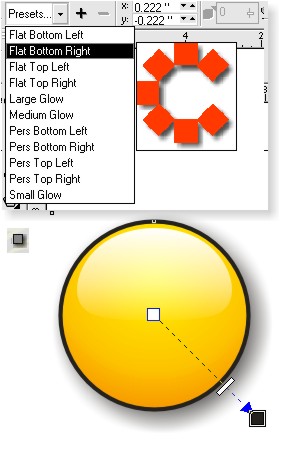
We are almost done, just add a smiple drop shadow useing the Interactive Drop Shadow Tool. Click on the presets drop down menu and select Flat Bottom Right (Note: Make shure you have the circle object selected and not the highlight) It should look like this.
Now take an intresting symbol or somthing and add it to the image placeing it on top of the circle and under the highlight. Your final result should look like this but with a different symbol.
Try expermenting with diffrent colors and symbols the possibilitys are endless!